01
Log in to Torcons
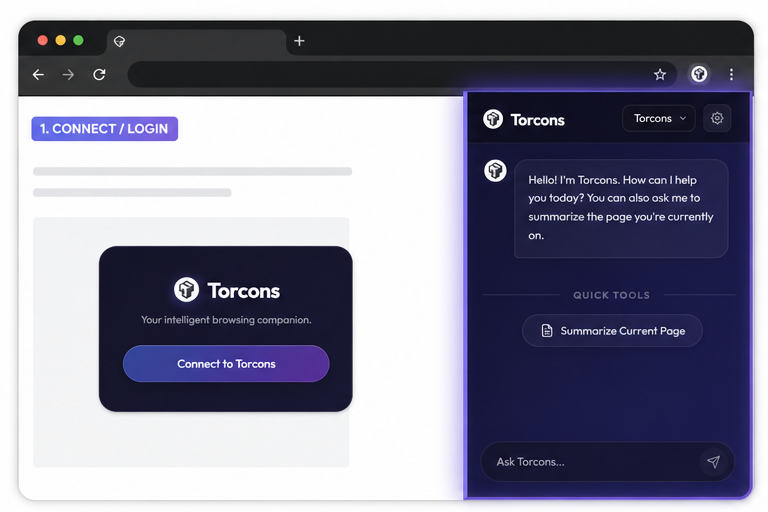
Open the extension and you will be directed to chat.torcons.ai. Sign in to your Torcons account to start using the extension.
Turn any webpage into a faster, smarter reading experience. Summarize content, ask questions in context, and analyze images without leaving your browser.
Sign in to get started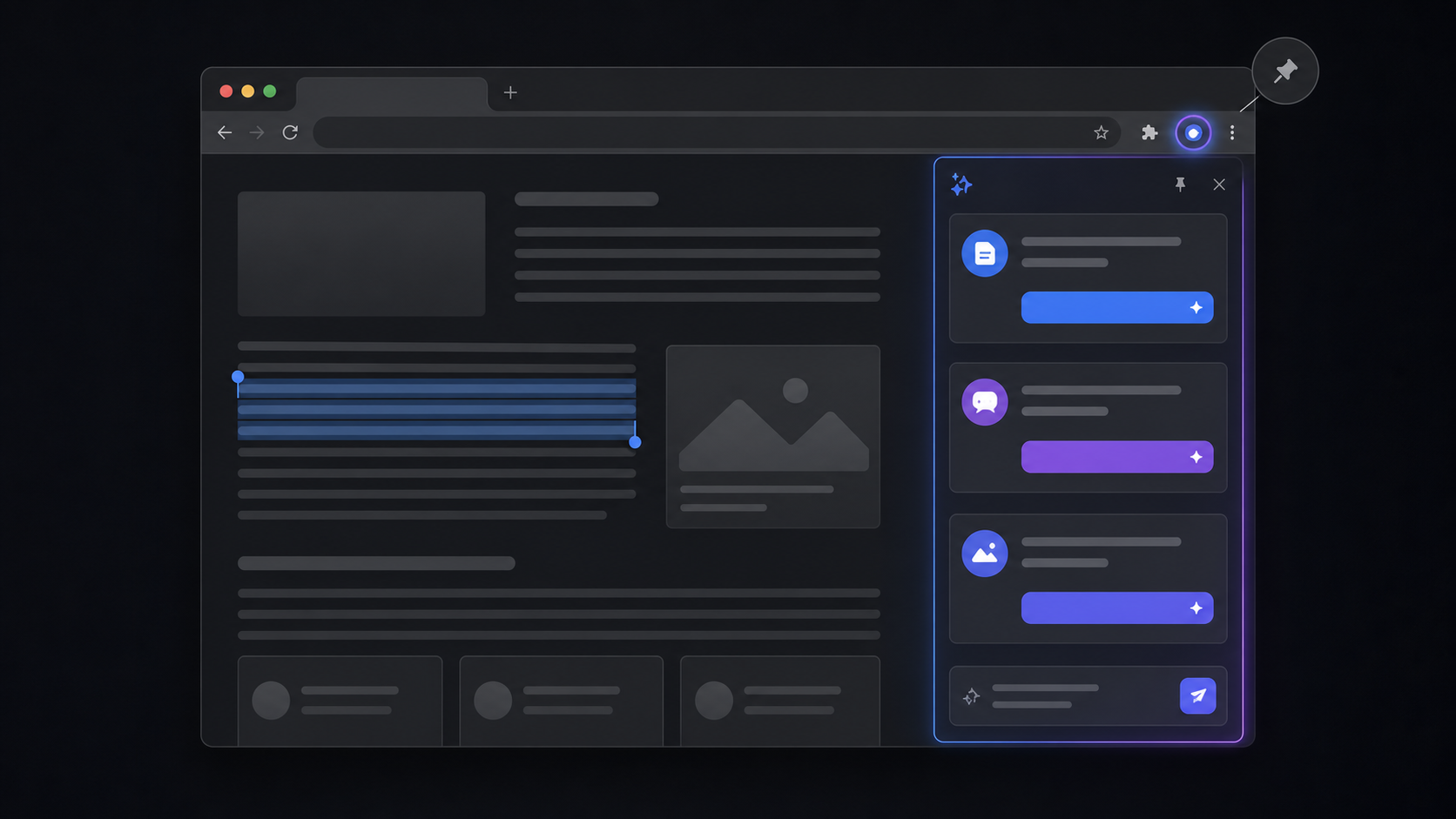
Open the extension and you will be directed to chat.torcons.ai. Sign in to your Torcons account to start using the extension.
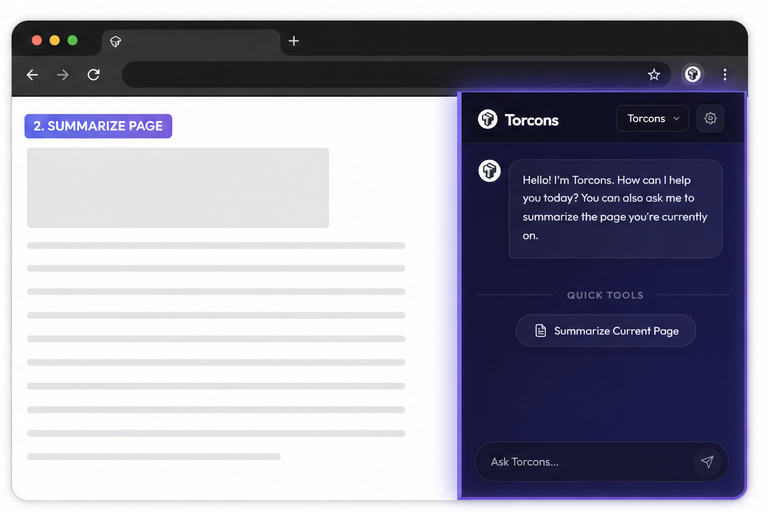
Summarize an article or any webpage in one click. You can also ask questions about the page you are currently viewing, making research, study, and reading much faster.
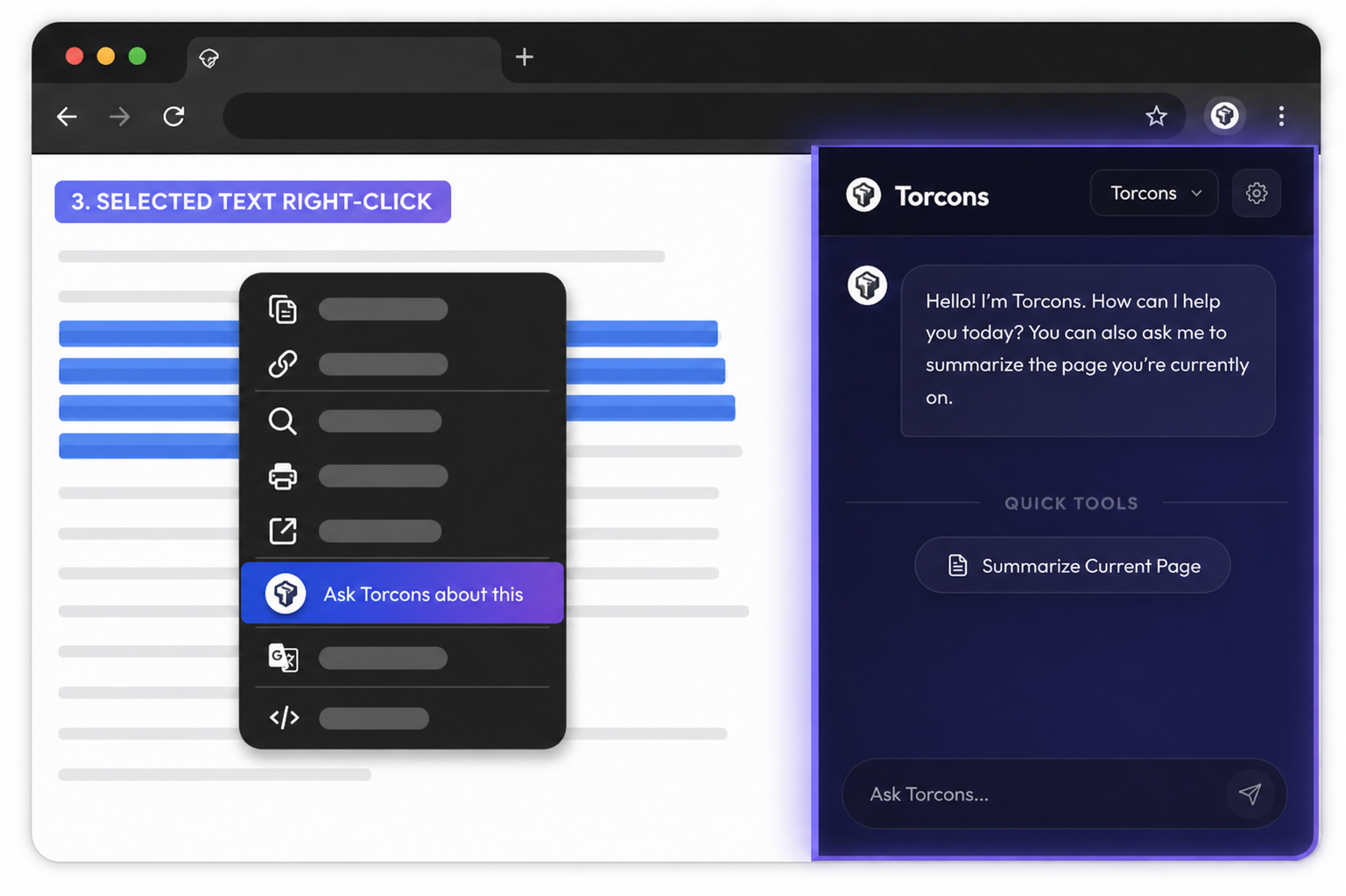
Select any text on a page, right-click it, then choose Torcons. Your question will focus only on the text you selected.
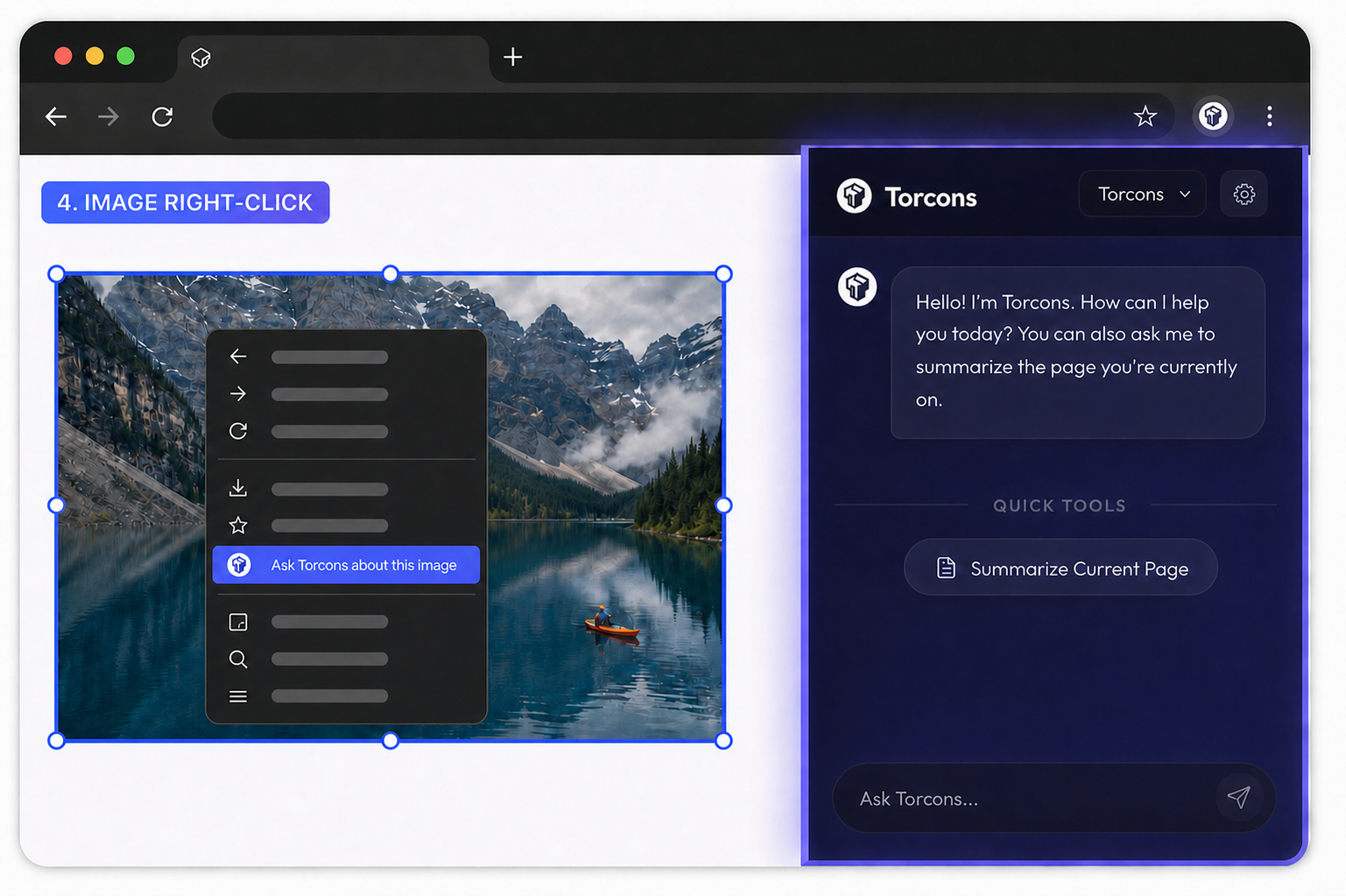
Right-click an image and choose Torcons to ask questions about it or get help understanding what the image contains.
Select the Extensions icon in the top-right corner of your browser, then select the Pin icon next to Torcons to find the extension more easily.